
Last week while playing video file on my Android phone, I got an error message saying “Can’t play video”. Is there any video repair workaround to fix that issue on my Android?
Having a video that is not playing properly on Android phone can be distressing. Fortunately, several DIY solutions and third-party online video repair are available to repair your damaged or not playable videos with ease. Whether you are getting a black screen, hearing audio without video preview, or encounter any unexpected error, these video-related issues need immediate fixes.
The good news is that many video repair methods are available to fix Android video playback issues. This step-by-step guide covers different video repair methods to fix videos not playing on Android phone. Let’s begin!
Common Reasons for Videos Not Playing on Android Phone
Identifying the exact reason for damaged or corrupted video on Android can help you determine the right video repair workarounds.
- Corrupted Video File: One of the main reasons why videos not play is that it is damaged, which generally happens due to interrupted transfer, incomplete download, or storage errors.
- Insufficient Free Space: Low memory can affect the performance of applications and influence video viewing.
- Corrupted Video Player Cache: Video player caches can be corrupted and lead to playback problems.
- Poor Internet Connection: Online videos won’t load or will buffer endlessly because of poor Wi-Fi or mobile data connection.
- Software Bugs or Outdated Android System: Glitches or bugs and outdated version of Android system will affect video playback
Quick Methods to Fix Videos Not Playing on Android
Now that you’re familiar with few reasons why your videos aren’t playing, it’s time to apply quick video repair workarounds. You can go with the below methods one by one to fix videos not playing on Android:
Method 01: Restart Your Android Device
Let’s begin with the simplest workaround first. Sometimes, a simple restart can help you fix temporary software bugs which cause playback issues. To restart your Android device:
- Keep pressing the Power button of your mobile for few seconds.
- Click Restart and wait till the device powers back ON.
- Once restarted, try playing the video again.
If the issue was caused by temporary system memory problems, this quick fix usually works.
Method 02: Update the Media Player App
Outdated video player programs of your Android phone can also be the culprit for video not playing properly issue. Usually, the older versions of media player lack support for newer video codecs and may lead to playback errors. In such cases, follow the below steps to update your media player:
- Open the Google Play Store app on your Android phone.
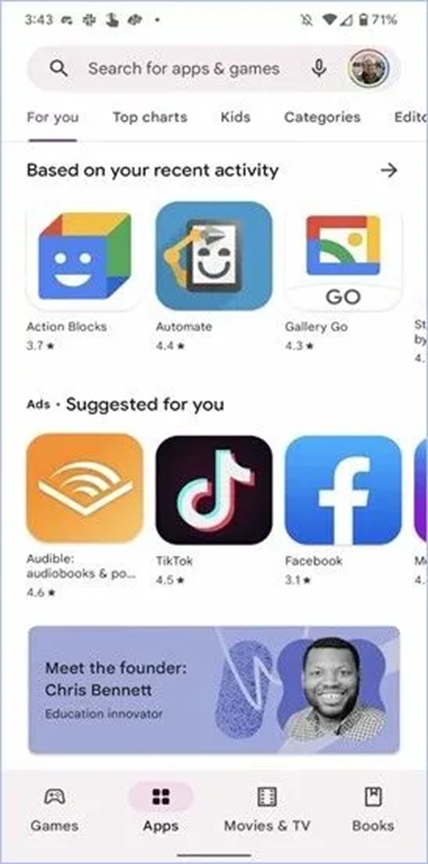
- Search for the media player installed (this varies as per your device manufacturer and its models).
- Once you find the required player, click Update.
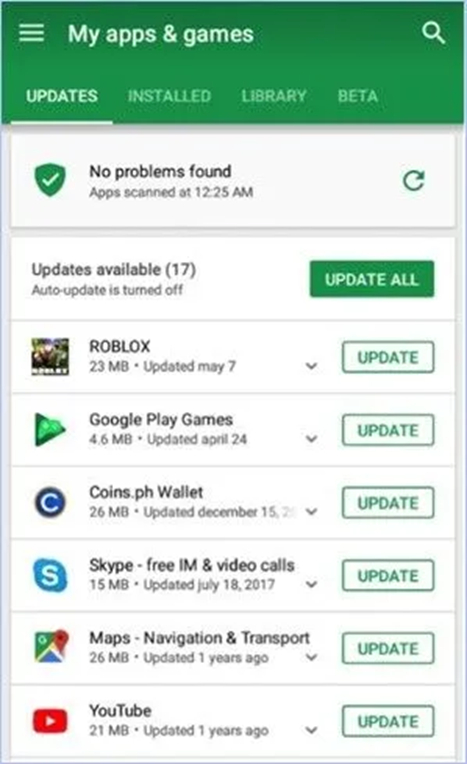
- If any new update appears, go through the on-screen instructions to install it.
If you’re using Google Photos, VLC, MX Player, or another player, keeping it updated ensures better compatibility.
Method 03: Turn Off Battery Optimization for Video Apps
Aggressive battery-saving settings may interrupt video playback and cause problems while playing them on Android. You can disable battery optimization by following the steps below:
- Launch the Settings app, go to Battery.
- Select Battery Optimisation and choose your video app.
- Now, choose Don’t Optimise.
This method helps prevent your Android phone from restricting the app while videos are playing.
Method 04: Convert Video into Compatible Format
Sometimes, your desired video file is not in the format which is compatible with your Android device. In such cases, it will show error while playing the video. Follow the below steps to change your video file format:
- Install any video converter on your PC. Or, visit the official website of any tool which can help you convert your video.
- Upload the video file that you need to convert.
- Select the desired output format and initiate the conversion process.
After successful video conversion, transfer the converted file to your Android phone and try playing it again.
Method 05: Repair Corrupted Video Online
If the video file itself is corrupt, the methods mentioned above won’t work. For such kinds of repair jobs, you will need to use a reliable online video repair solution such as Stellar Online Video Repair. The powerful software is designed to fix damaged video files from smartphones, drones, cameras, and other devices. It doesn’t matter what your problem is; whether it is black screen, freezing frames, audio-video synchronization problem, or header corruption. This online tool will assist you with every repair job.
Here’s how to repair video using Stellar Online Video Repair:
- Open any web browser on your device and visit the official website of Stellar Online Video Repair solution. Also, connect your Android phone to that device.
- Click Upload Video and add the damaged video file from your Android phone that you need to repair.
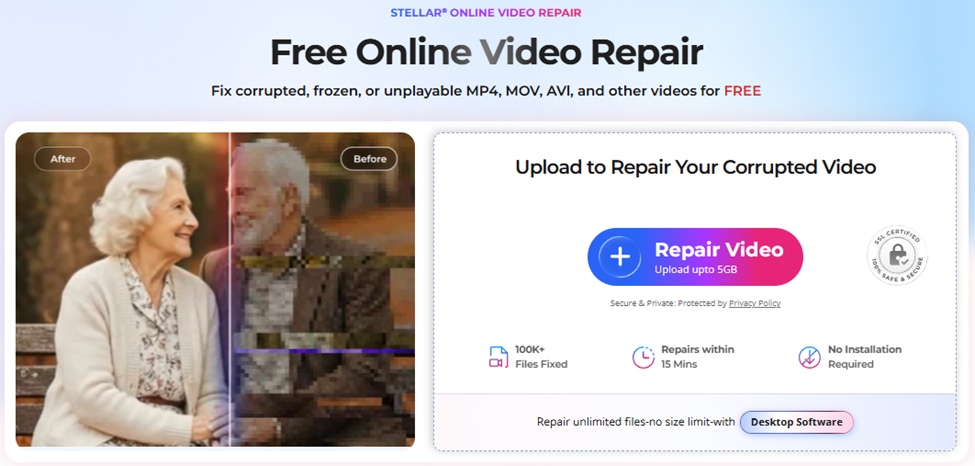
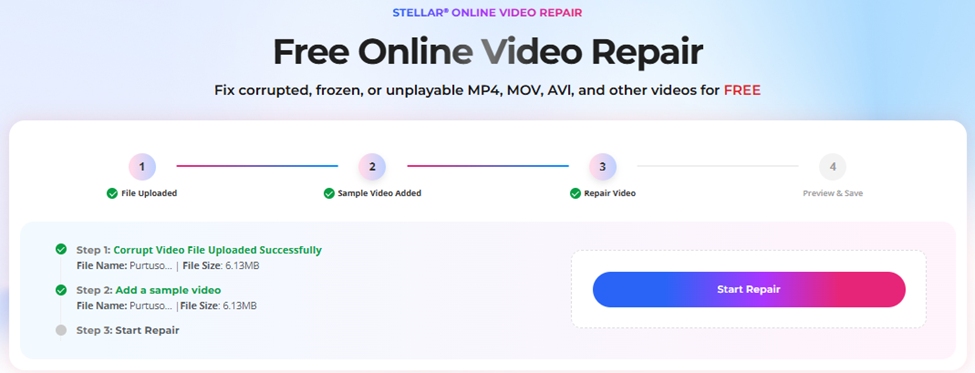
- Now, add a sample video and click Start Repair and wait till the repairing process is complete.
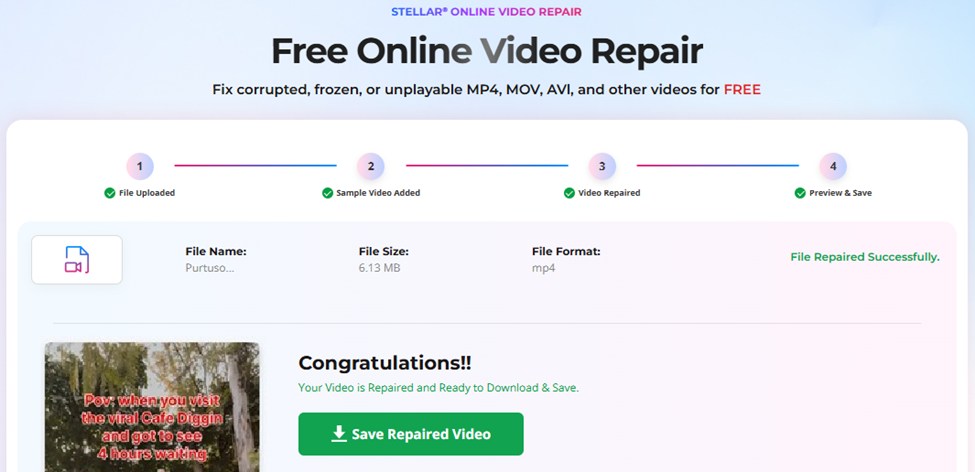
- Once the repair is complete, preview the repaired video files and click Save Repaired Video to save the file to your device.
Conclusion
Having a video file that you are unable to play on an Android phone is really distressing. If you have ever experienced such an issue, go with the aforementioned video repair fixes to make your videos playable again. Start with simple fixes like restarting your Android device, updating the video player app, or clearing the cache. You can also try repairing the video using VLC, which sometimes prompts to fix damaged files, particularly AVI videos, on its own. If manual DIY methods fail, use a specialized solution like Stellar Online Video Repair to restore playback. Also consider preventive measures like maintaining regular backups to prevent such playback errors in the future.
Frequently Asked Questions (FAQs)
Why do videos show black screens on Android?
This means that there are problems with the video either it has been being corrupted, the codec not being supported, old media player, or issues with rendering graphics.
Does Android play MOV videos?
Only a few Android devices play MOV videos, as the compatibility depends on the codec used. However, there are third-party media players such as VLC and MX player, which can help you play MOV videos.
What is the best way to fix corrupt videos?
One of the easiest ways to repair your corrupt or damaged video files is using a specialized video repair solution like Stellar Online Video Repair.